
- Set each item up once: Product or Service, name, unit, HSN code, GST rate, sale and purchase price, and opening stock. After that every bill fills these in by itself.
- Say whether your price includes GST or not — this changes the bill total.
- Set a minimum stock alert so you know before an item runs out.
Product or service?
A product is something you keep in stock and sell by a unit. A service — like repair, fitting or delivery charges — has no unit and no stock. Choosing the right one keeps your stock report clean.
Choose the right unit
Pick the unit you actually sell in — PCS for pieces, KGS for loose goods by weight, BOX for packs. The unit prints on the bill next to the quantity, and GST returns also use it.
HSN code: what to enter
- HSN is the code that tells GST what your product is. Services use a SAC code instead.
- Turnover up to ₹5 crore: at least 4 digits on bills to registered customers. Above ₹5 crore: 6 digits on all bills.
- Your supplier's bill usually shows the HSN of the same item — a good place to start.
GST rate and tax-inclusive prices
Pick the GST rate for the item. From 22 September 2025 most items are at 5% or 18%. Then say whether your price includes tax:
- Price ₹118, including 18% GST: the taxable value is ₹100 and GST is ₹18. The customer pays ₹118.
- Price ₹100, without GST: GST of ₹18 is added on top. The customer pays ₹118.
- Shops that sell at a fixed price (like MRP) usually keep the price including tax.
Add an item in TejOrder
-
Open Items
Open Inventory → Items. The cards show total items, stock value at purchase price, low stock and out of stock.
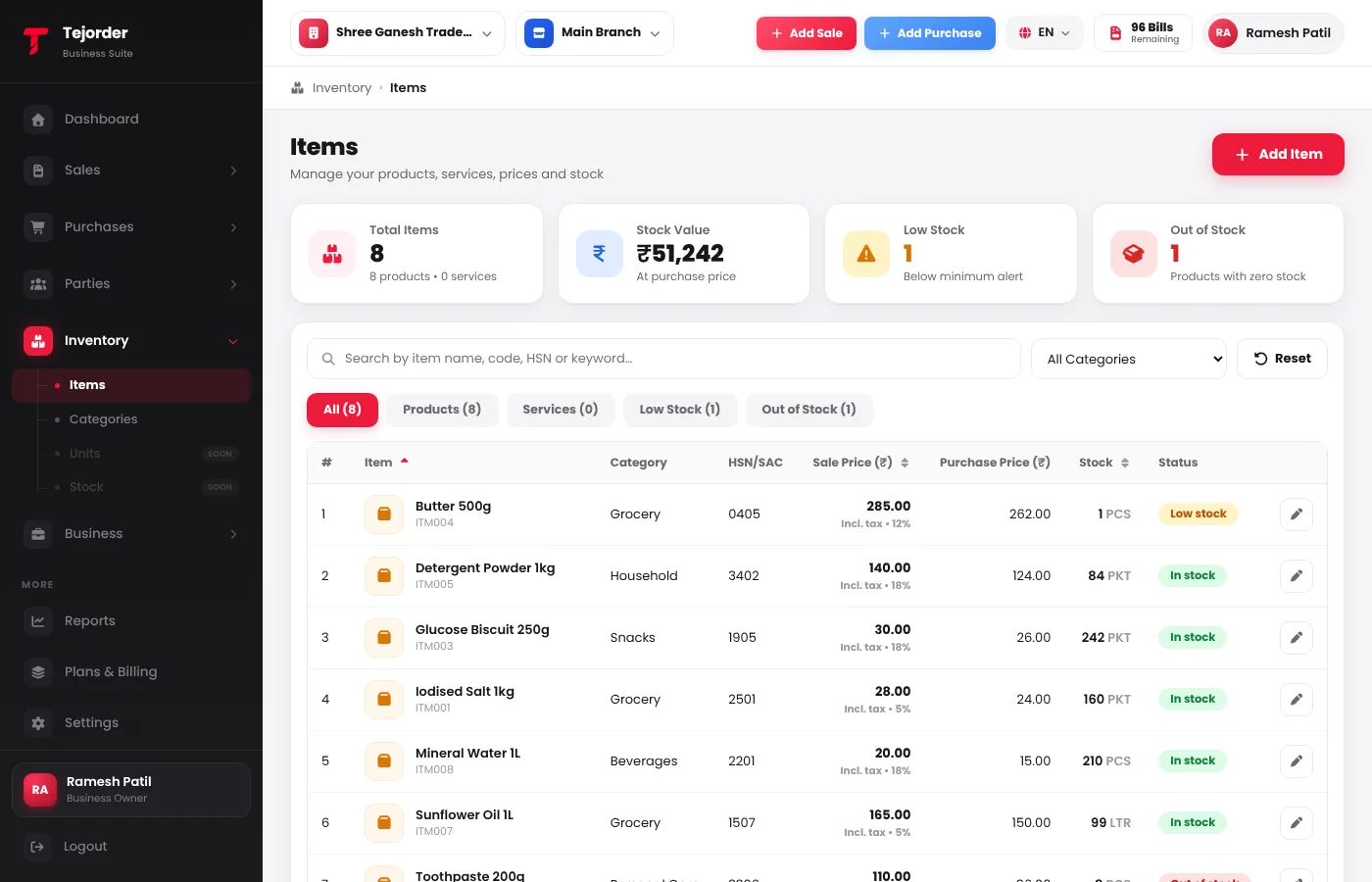
Inventory → Items — price, stock and status for every item. -
Fill the basics
Tap Add Item, choose Product or Service, type the Item Name, search the HSN / SAC, tap Select Base Unit and pick a Category. The Item Code is filled for you.
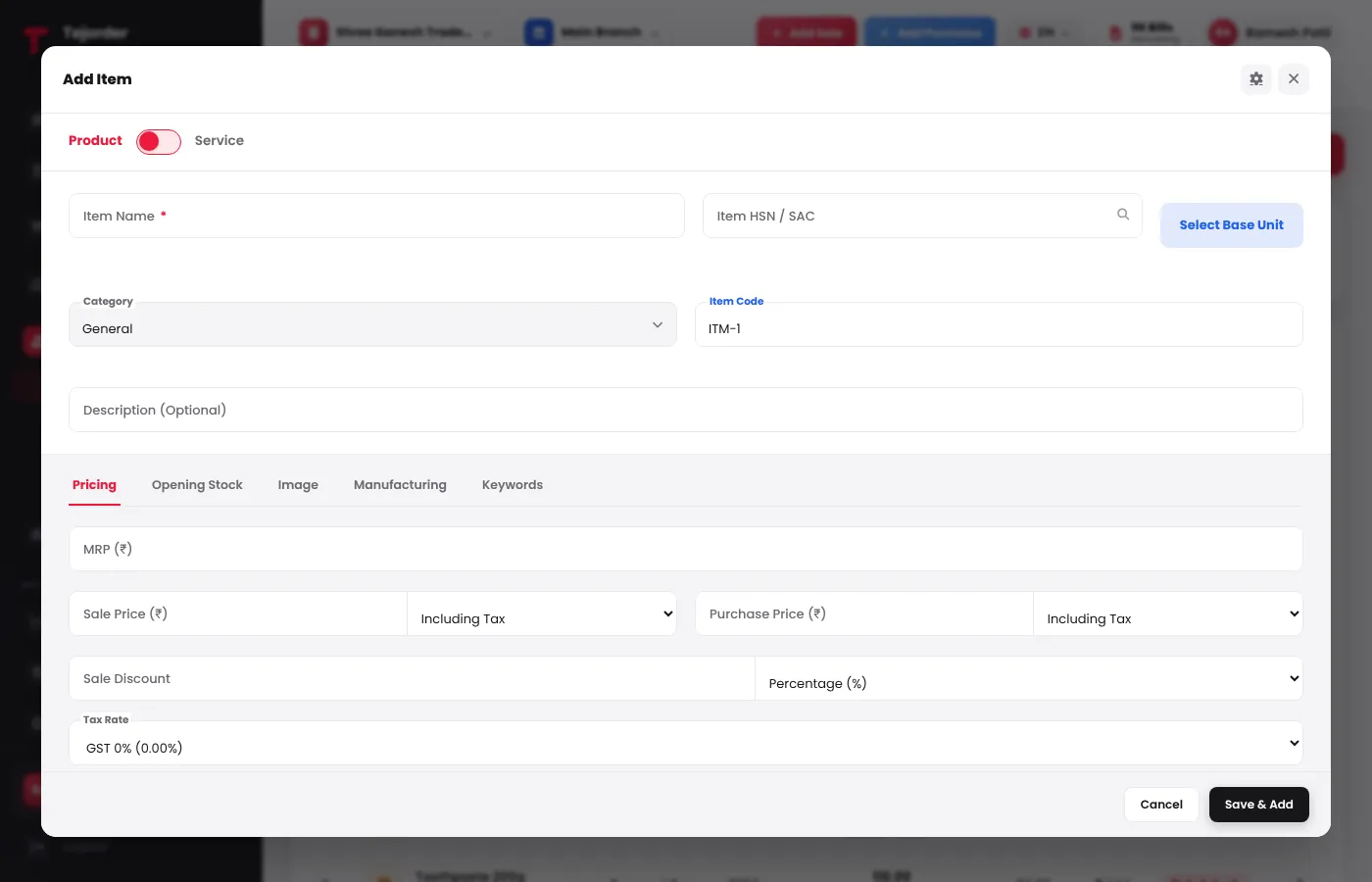
Add Item — Pricing, Opening Stock, Image, Manufacturing and Keywords tabs. - Set the price and GST In Pricing, type the Sale Price and Purchase Price, choose whether each includes tax, and pick the GST Tax Rate. Add MRP or a sale discount if you use them.
- Add opening stock and save In Opening Stock, type the quantity you have today and a Minimum Stock Alert. Tap Save & Add.
Tips that save time at the counter
- Add Keywords — the local name of an item (like "chawal" for rice) — so it is found when you search while billing.
- Use Categories to keep a long item list easy to browse.
- Add a photo of the item so staff pick the right one.
Common questions
It says Base unit is required. What do I do?
Every product needs a unit. Tap Select Base Unit and pick the unit you sell in. Services don't need one.
If I change an item's price, do old bills change?
No. New bills use the new price; old bills stay as they were.
Do I have to update stock by hand after every sale?
No. Stock goes down when you post a sales invoice, and up when you save a purchase bill or a sales return.
Next: what a GST invoice must show →
Make your first GST bill today
Create a free TejOrder account — billing, stock, payments and reports in English, Hindi and Marathi, on any device.