
Short answer
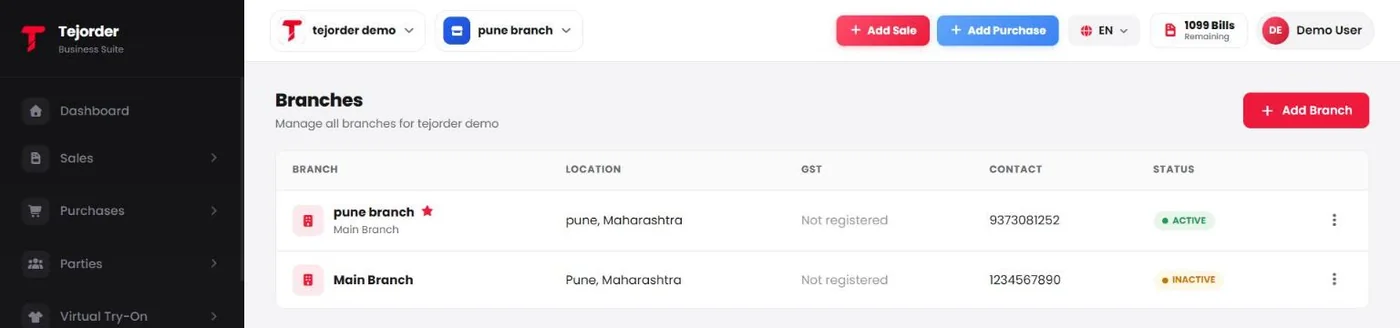
Use the two buttons at the top left of the app to switch business and branch. Manage branches in Business → Branches, and choose what each branch sells in Business → Software Style.
Switch business or branch
The first button shows the business you are working in, and the second shows the branch. Tap either one to switch. Bills you make go to the business and branch shown here.

Check the business and branch before you make a bill, especially if you run more than one shop.
Manage branches
Open Business → Branches to see every branch with its location, GST, contact and status. Tap Add Branch to add a new one, or use the ⋮ menu to change a branch.
Choose a Software Style
Open Business → Software Style and tick one or more styles for each branch. Sales, purchase, stock, GST and reports stay the same, and your existing data is never changed.
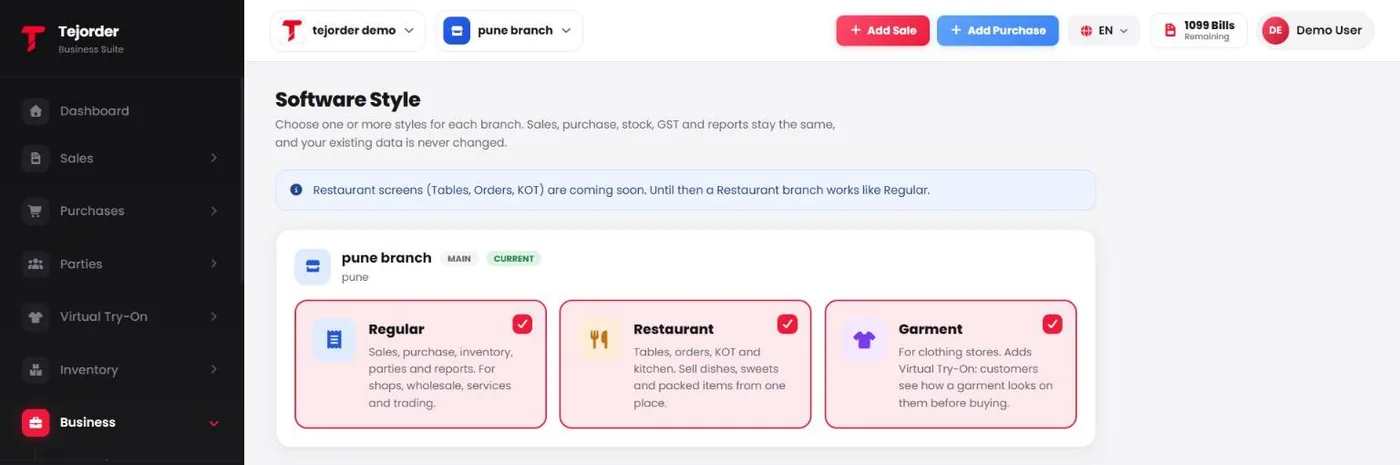
- Regular — sales, purchase, inventory, parties and reports. For shops, wholesale, services and trading.
- Restaurant — tables, orders and KOT screens are coming soon. Until then a Restaurant branch works like Regular.
- Garment — for clothing stores. Turns on Virtual Try-On in the menu, so customers can see a garment on themselves before buying.