
Short answer
Tap Add Sale in the top bar (or Sales → Sales Invoice), choose the customer, add your items with quantity and price, check the total and post the invoice. One bill is used when you post; drafts are free.
Steps
-
Open a new sales invoice
Tap the red Add Sale button in the top bar, or open Sales → Sales Invoice from the menu. The invoice number and today's date are filled in for you.
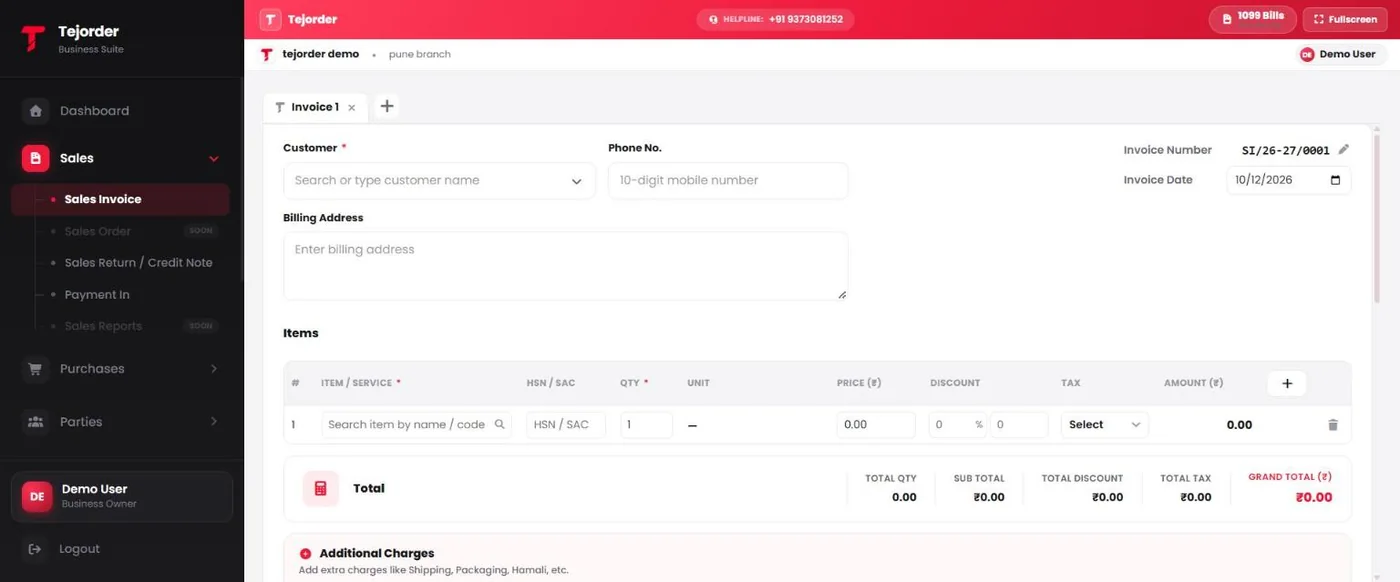
New sales invoice screen - Choose the customer Search or type the customer name. Add the phone number and billing address if you want them on the bill.
- Add items Search each item by name or code, then set quantity, price and discount. Tap + to add another row.
- Add extra charges if needed Use Additional Charges for things like shipping, packaging or hamali.
- Check the total and post The Total box shows quantity, sub total, discount, tax and grand total. When everything is correct, post the invoice.
Busy counter? Use the + next to the Invoice 1 tab to open more invoices at the same time.
Common problems
I cannot post because I have no bills left
Buy extra bills or upgrade your plan in Plans & Billing. Your draft stays saved meanwhile.
Why is there no GST on my invoice?
GST is added only when the branch is linked to a GST registration. See the article on adding your GST number.