
Short answer
Choose Male, Female or Kids, tap the garment type, and let the customer hold the garment beside them. The camera takes the photo after a short countdown, and the AI picture is usually ready in under a minute.
Steps
-
Choose Male, Female or Kids
Use the buttons at the top of the Try-On screen.
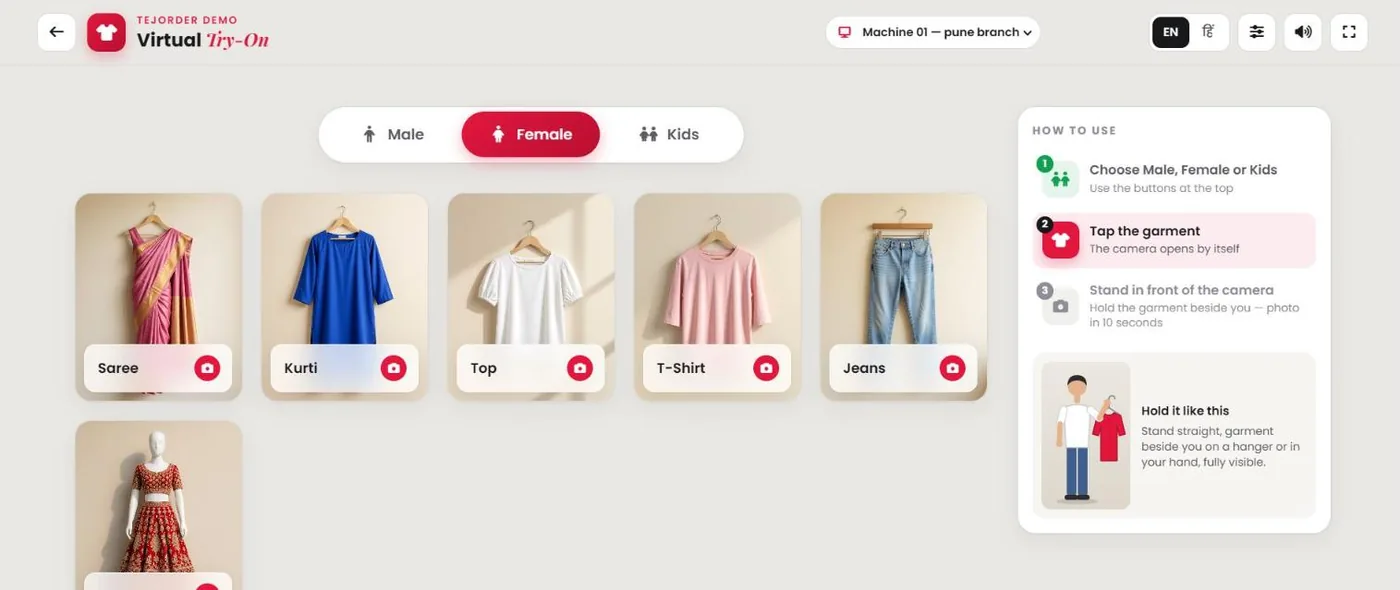
Try-On screen — Female garments -
Tap the garment type
For example Shirt or Saree. The camera opens by itself.
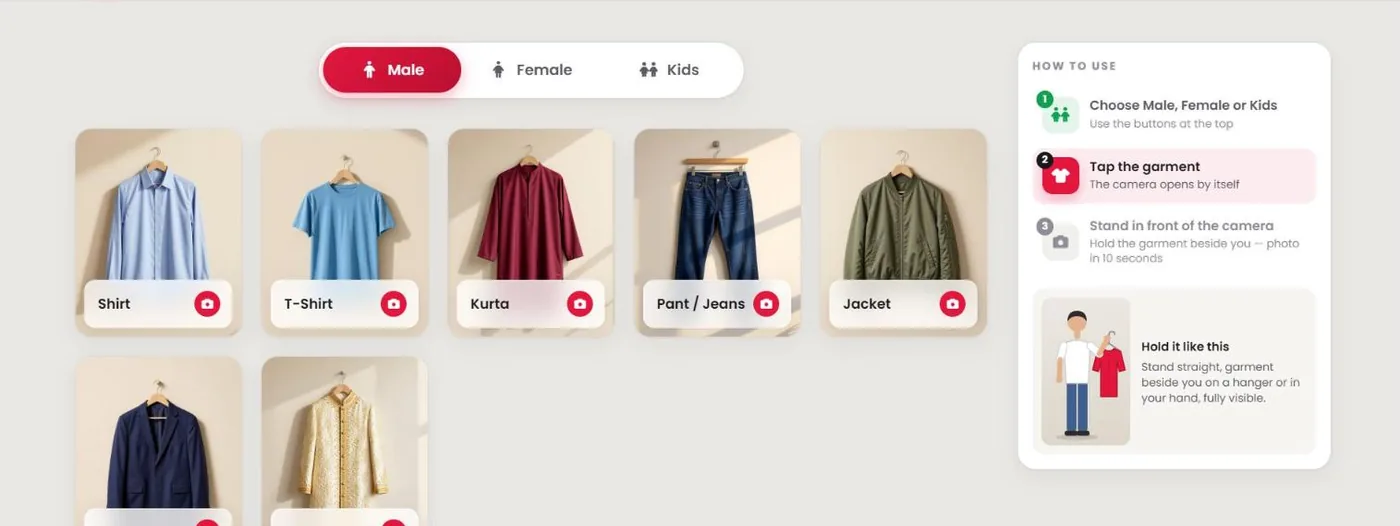
Try-On screen — Male garments - The customer stands and holds the garment Standing straight, with the garment beside them on a hanger or in the hand, fully visible. The photo is taken automatically after a short countdown.
- Show the result and send it on WhatsApp Enter the customer's number to send the picture with your shop name.
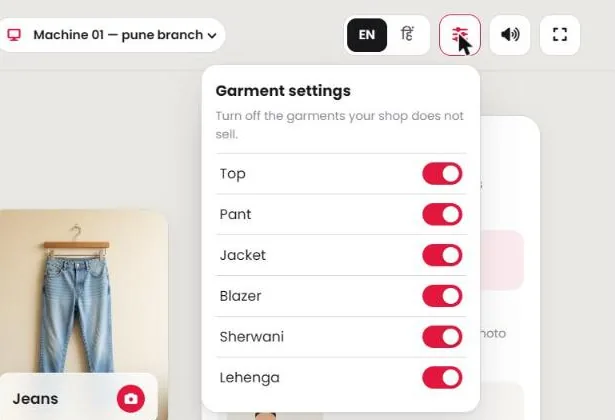
Show only the garments you sell
Top, Pant, Jacket, Blazer, Sherwani and Lehenga are optional. Switch off the ones your shop does not sell, so the counter screen stays simple.
Tips for a good photo
- Good, even light on the customer. A dark corner or strong light from behind gives poor photos.
- Stand back so the body is in the frame, not only the face.
- Hold the garment open and fully visible, not folded, and do not cover the face with it.
- Only one person in front of the camera, and keep still during the countdown.
Common problems
The screen asks to take the photo again
The photo was too dark, blurry, too close, or the garment was not clear. Fix the light or distance and try again. A try-on that fails does not use a credit.
The colour or embroidery looks a little different
The result is an AI preview of the look. Fine work and long dupattas can look slightly different, and it does not show exact fit or size. Check the result before sending it.