
Short answer
Tick Garment in Business → Software Style, add a machine in Virtual Try-On → Machines, then log in on the counter device, open Virtual Try-On → Try-On and pick that machine.
What you need
- A phone, tablet, laptop or smart TV with a camera and a web browser. No app is needed.
- A stable internet connection.
- A free TejOrder account. You do not have to buy the billing software.
Steps
-
Turn on the Garment style
Open Business → Software Style and tick Garment for the branch where the Try-On screen will be. The Virtual Try-On menu then appears in the sidebar.
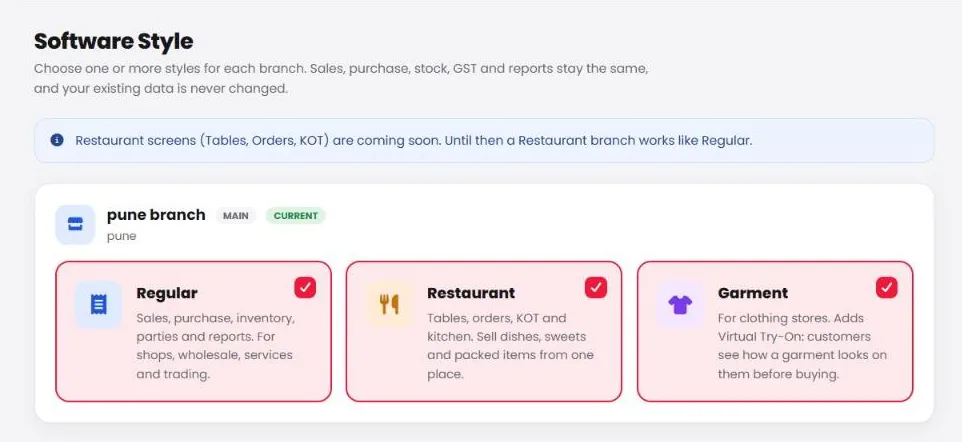
Business → Software Style — tick Garment. -
Open Virtual Try-On → Machines
Here you see every machine with its plan and credits left.
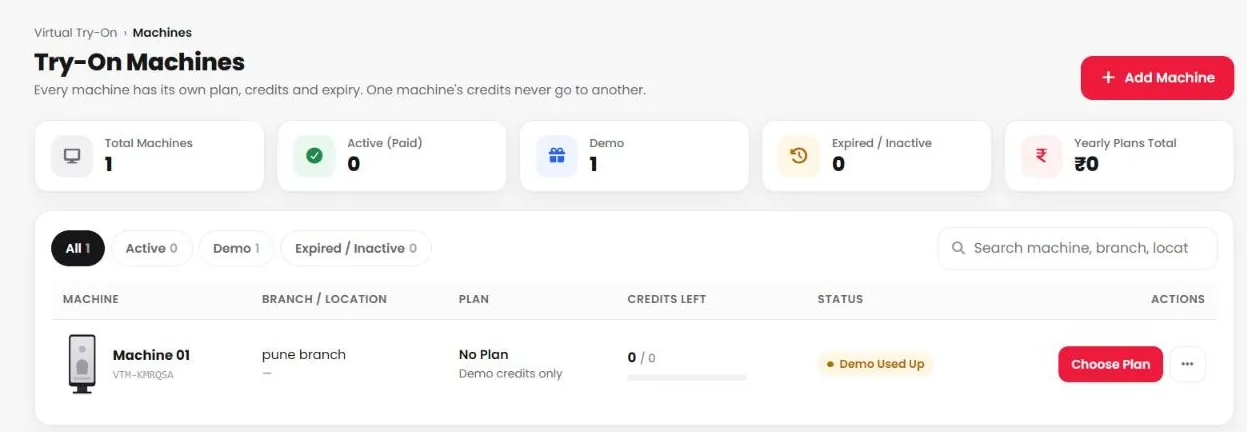
Virtual Try-On → Machines -
Tap Add Machine — one for each counter screen
Give the machine a name you will recognise, like Counter 1. Each machine has its own plan and credits, so two counters never mix up credits.
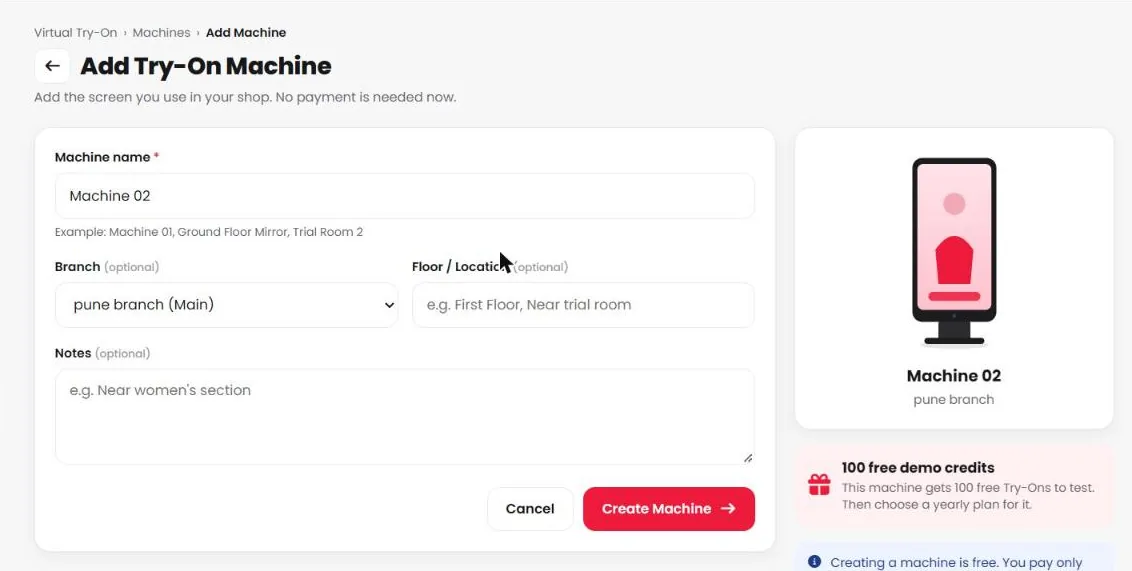
Add Machine - Open the Try-On screen on the counter device Log in on the counter device, open Virtual Try-On → Try-On and pick the machine at the top. Allow camera access when the browser asks.
One machine works on one device at a time. If you open the same machine on another device, the first device is logged out automatically.
Common problems
I cannot see Virtual Try-On in the menu
Garment is not ticked for the branch you are in. Check the branch in the top bar, then tick Garment in Business → Software Style.
The camera does not open
Allow camera access for app.tejorder.com in the browser settings, close other apps that use the camera, and reload the page.
My counter screen logged out by itself
The same machine was opened on another device. Use one machine per screen — add another machine for the second counter.