
Short answer
Open Inventory → Items and tap Add Item. Choose Product or Service, type the item name, select the base unit, set the sale price, purchase price and GST rate, and add opening stock if you have it. Tap Save & Add. The Items list shows each item's price, stock and whether it is low or out of stock.
Steps
-
Open Items
Open Inventory → Items. The cards show total items, stock value at purchase price, low stock and out of stock. Use the tabs or search to find an item.
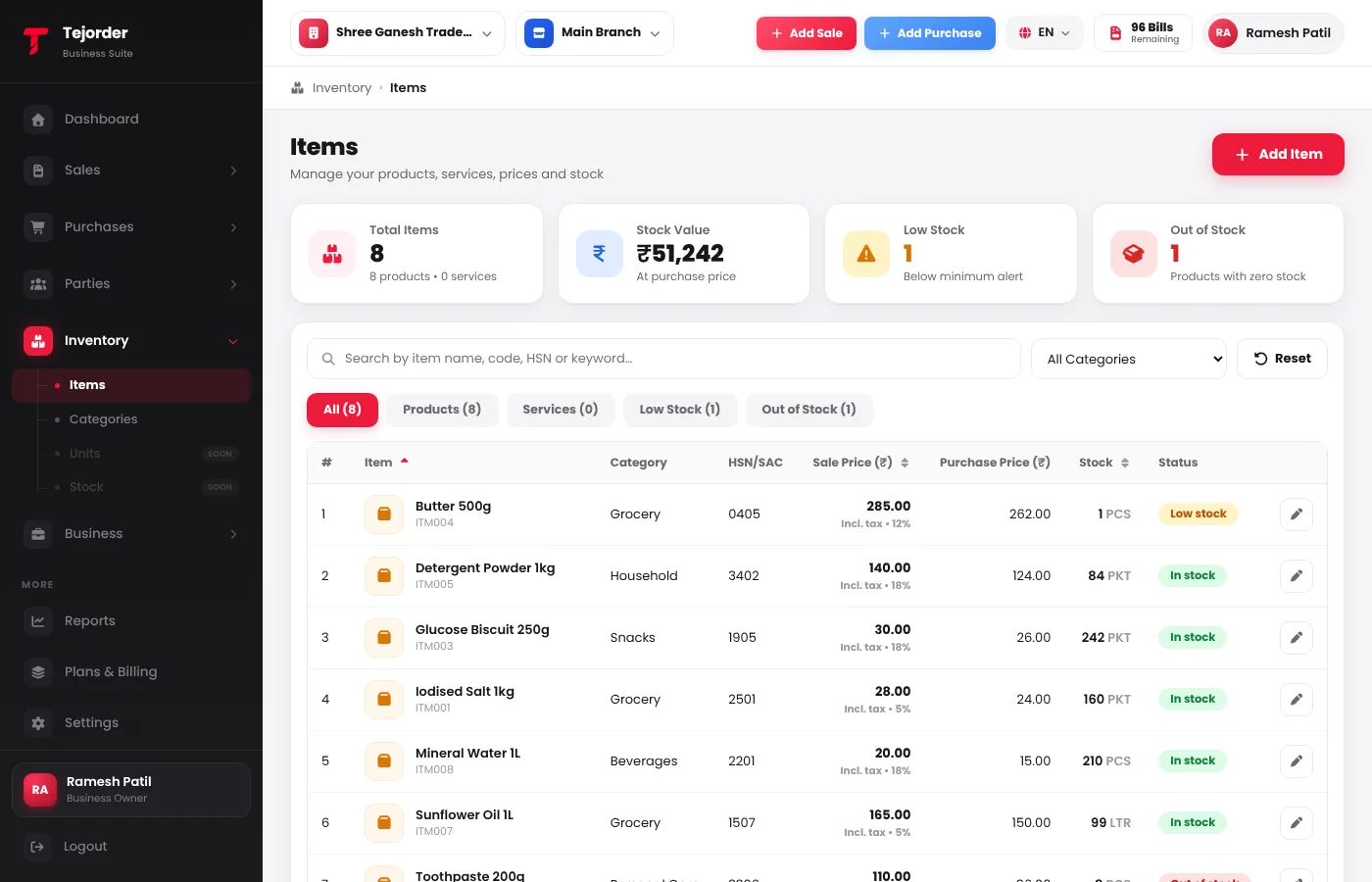
Inventory → Items — price, stock and status for every item. -
Tap Add Item and fill the basics
Switch Product or Service. Type the Item Name, search the HSN / SAC, and tap Select Base Unit (like PCS, KGS or BOX). Pick a Category; the Item Code is filled for you.
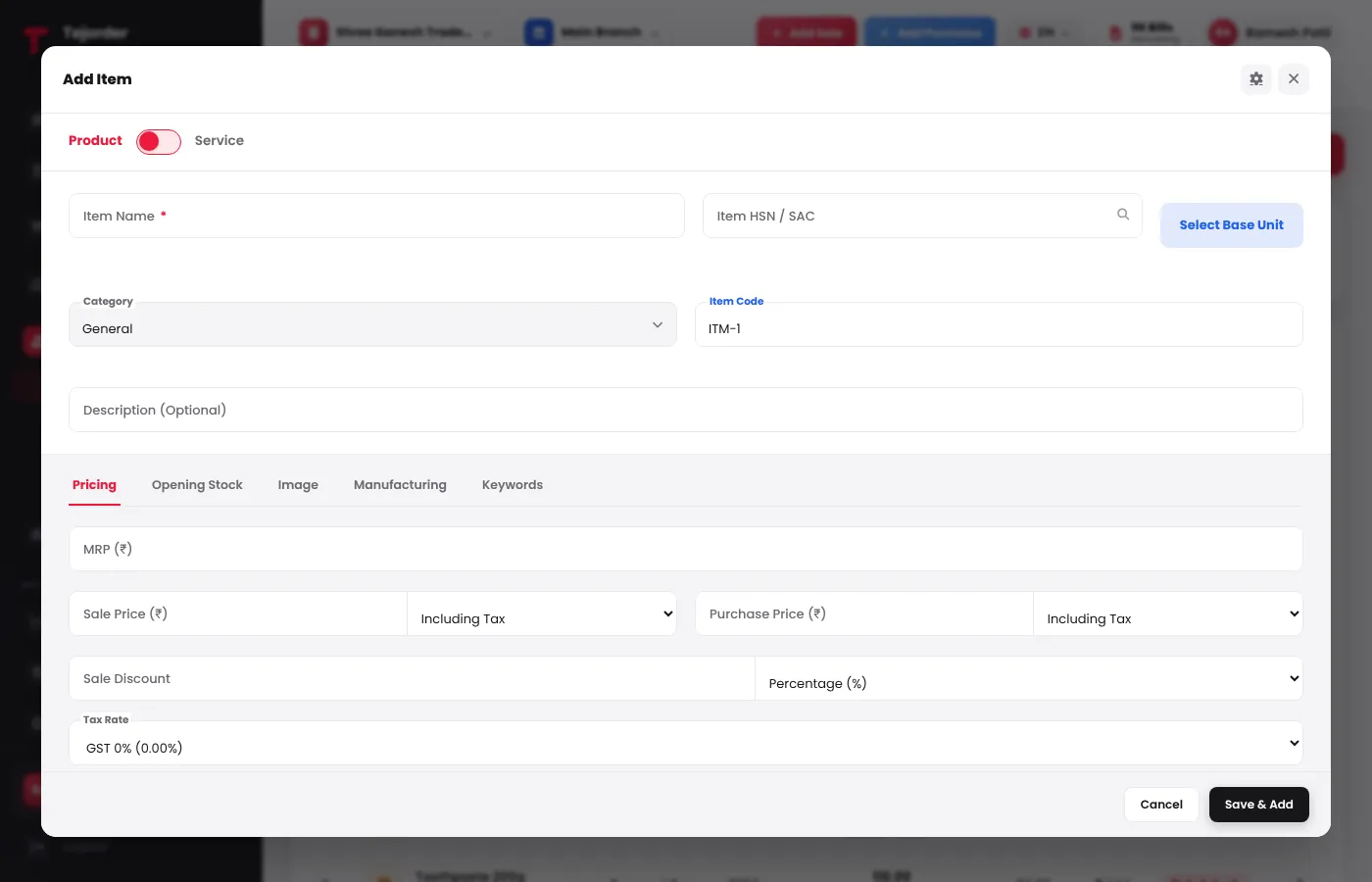
Add Item — Pricing, Opening Stock, Image, Manufacturing and Keywords tabs. - Set the price and tax In Pricing, type the Sale Price and Purchase Price, and choose whether each includes tax. Add MRP or a sale discount if you use them, and pick the GST Tax Rate.
- Add opening stock and save In Opening Stock, type the Opening Quantity you have today and a Minimum Stock Alert — the item shows as Low stock when it goes below this. Tap Save & Add.
- Image — add a photo of the item.
- Keywords — extra words (like the local name) so the item is found when you search while billing.
- A Service (like repair or delivery charges) has no unit or stock.
Stock updates by itself — it goes down when you post a sales invoice and up when you save a purchase bill or a sales return.
Common problems
It says Base unit is required
Every product needs a unit. Tap Select Base Unit and pick the unit you sell in. Services don't need one.
To change an item's price
Tap the pencil button next to the item in the list, change the price and save. New bills use the new price; old bills don't change.