Short answer
The Dashboard is the first page after you log in. It shows this month's sales and purchases, your customers and stock, a 12-month sales and purchase chart, payment status, top selling items, low stock items and your latest invoices — all for the business and branch selected at the top.
What you see on the Dashboard
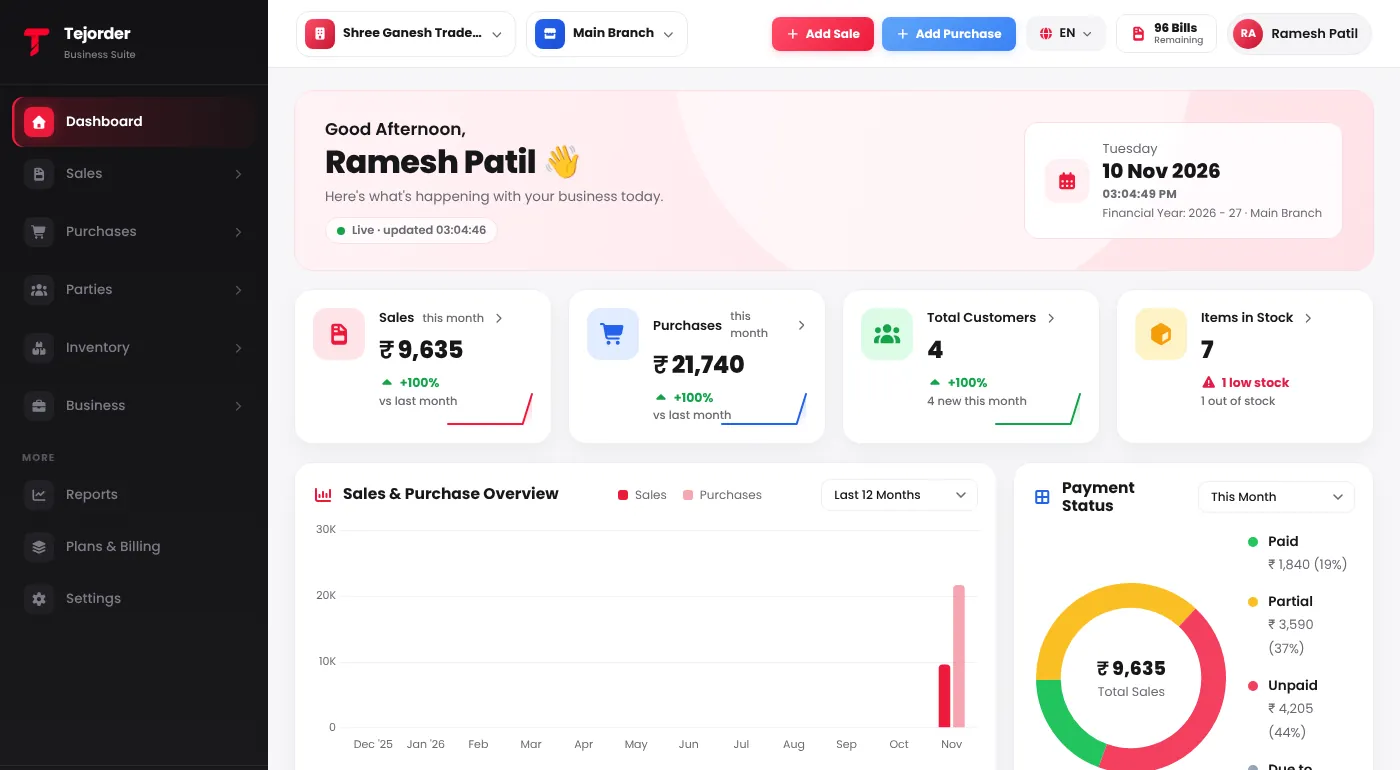
- Sales and Purchases this month — the total, with the change compared to last month.
- Total Customers and Items in Stock — with how many items are low or out of stock.
- Sales & Purchase Overview — a month-by-month chart. Change the period from the drop-down.
- Payment Status — how much of your sales is paid, partly paid and unpaid, and how much is still due to collect.
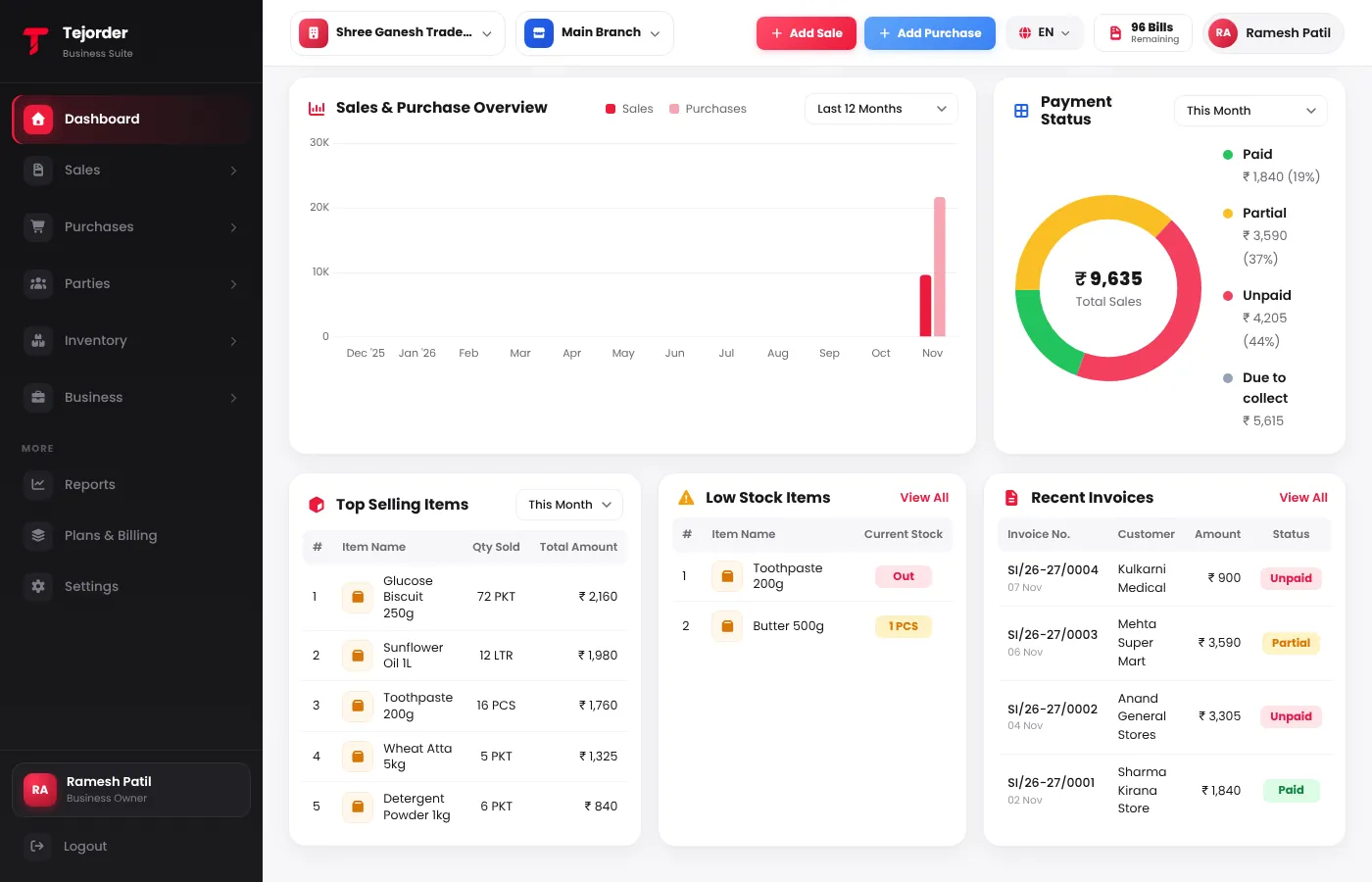
- Top Selling Items — what sold most, by quantity and amount.
- Low Stock Items — items below their Minimum Stock Alert, or out of stock. Tap View All to open them in Items.
- Recent Invoices — your latest sales invoices with their status. Tap View All for the full list.
The top bar
- Business and branch — switch here. Every page, including the Dashboard, then shows that business and branch.
- Add Sale and Add Purchase — open a new sales invoice or purchase bill in one tap.
- Language — English, हिंदी or मराठी.
- Bills Remaining — how many bills are left in your plan.