
Short answer
Go to Purchases → Purchase Return / Debit Note and tap New Return. Pick the supplier and the purchase bill, type how many pieces you sent back, choose a reason and tap Save & Create (F10). TejOrder makes a Debit Note, reduces your stock and reduces what you owe the supplier. The original bill is never changed.
Steps
-
Open Purchase Return / Debit Note
Open Purchases → Purchase Return / Debit Note. You see all debit and credit notes and how much was adjusted in bills or refunded by suppliers.
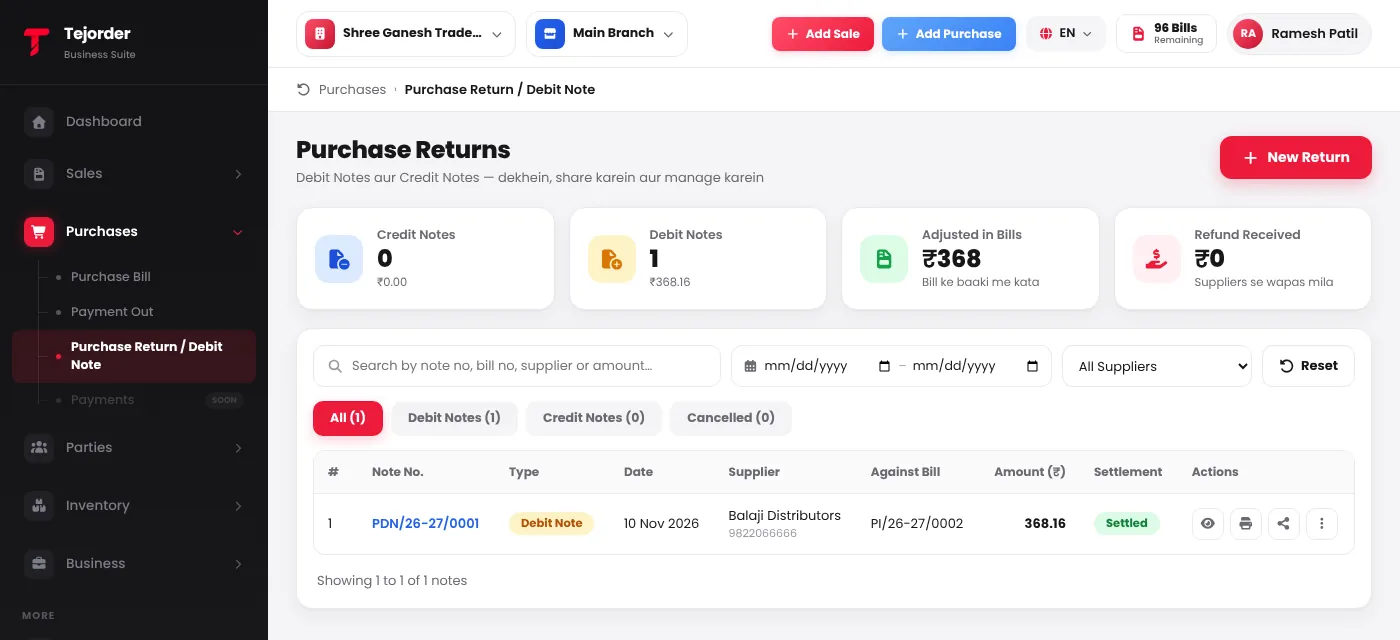
Purchases → Purchase Return / Debit Note — tap New Return to start. - Pick the supplier and the bill Search the supplier, then choose the bill under Against Purchase Bill. Its items load with the quantity and rate you bought at.
-
Type the return quantity
In Return Qty, type how many you are sending back (up to the maximum shown). If the supplier only changed the rate, tick Rate Adj and type the New Rate.
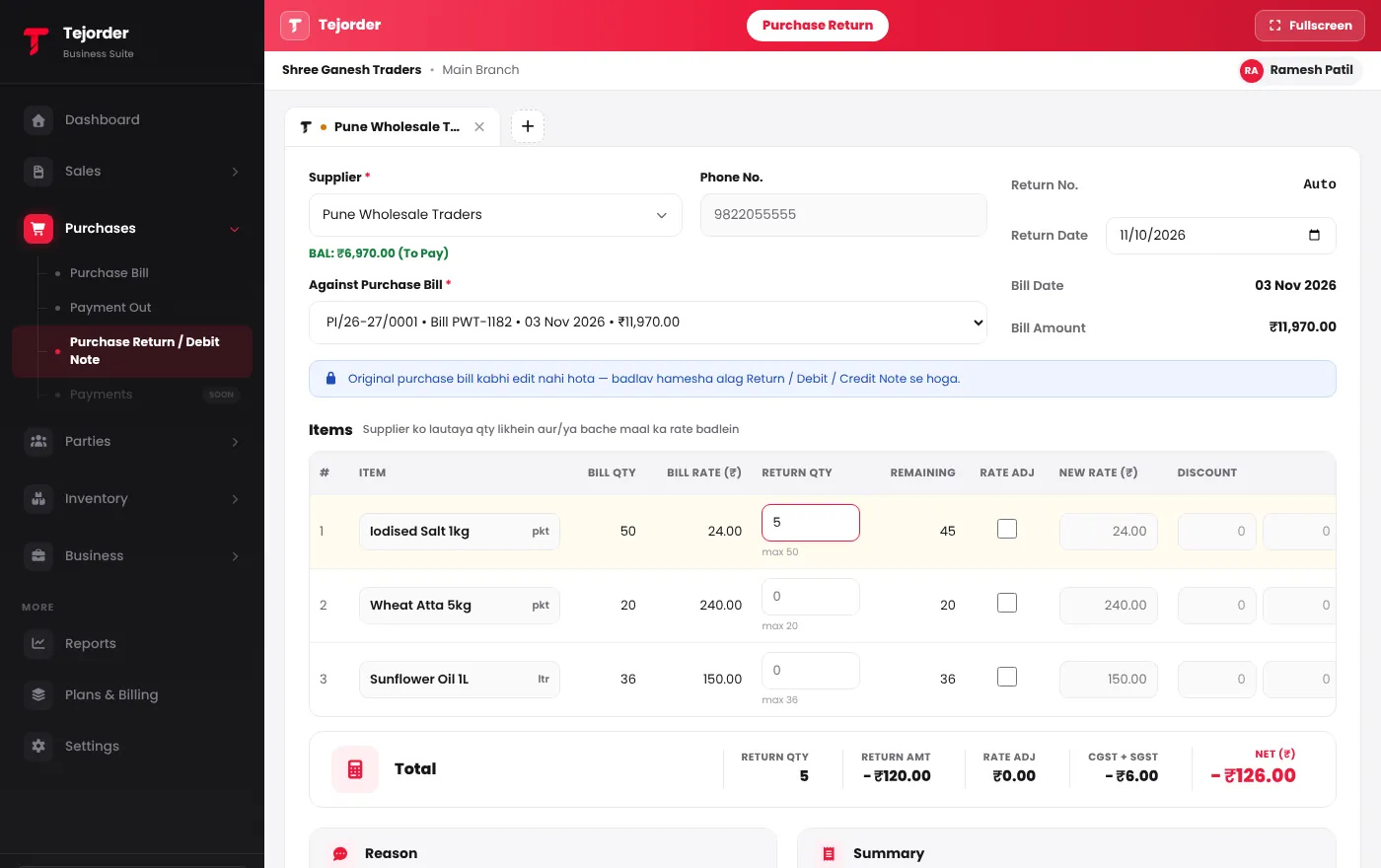
5 packets sent back against bill PI/26-27/0001. - Choose a reason and save Pick a reason — Purchase Return, Rate Correction, Damaged / Defective, Discount from Supplier or Other — and tap Save & Create (F10).
- The debit note first reduces the unpaid balance of that bill. If you had already paid, record the money the supplier gives back under Refund from Supplier.
- A higher New Rate (the supplier charges more) makes a Credit Note instead.
Only bills of the branch selected at the top show in the list. Switch branch if you can't find a bill.